Analytics tells you 40% of visitors left your pricing page. It cannot tell you why. Microsoft Clarity can: it records anonymized sessions and draws heatmaps of where people click, scroll, and give up — and unlike every competitor, it is genuinely free with no traffic limits, no sampling, and no trial countdown.
We run Clarity on this site. Here's the whole setup, plus the three reports worth checking.
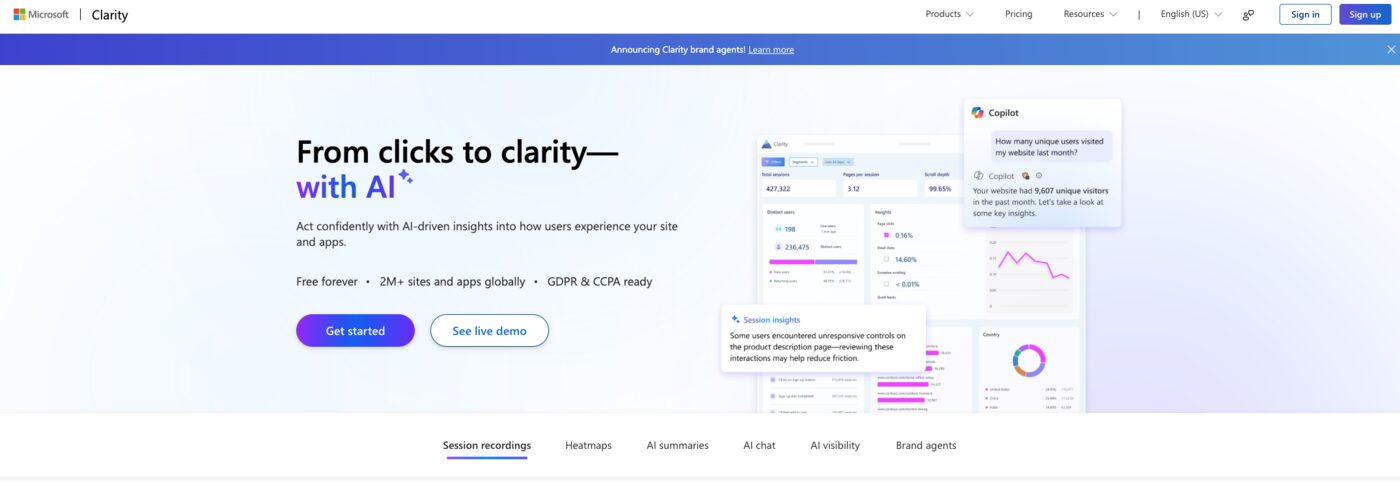
Step 1: Create your free project
Sign in at clarity.microsoft.com with any Microsoft, Google, or Facebook account, click Add new project, and enter your site name and URL. No credit card, no plan selection — there is only one plan, and it's free.
Step 2: Install the snippet
Clarity shows a small script — paste it into your site head, or use the one-click platform installs for WordPress, Shopify, Wix, and others. If you already use Google Tag Manager, add Clarity as a custom HTML tag there instead. Data starts appearing within about 30 minutes; a full dashboard needs a day or two of traffic.
Step 3: Watch ten recordings — with a specific question
Random recordings are entertainment; targeted ones are research. Filter recordings to a page that matters (checkout, contact, pricing) and watch ten sessions asking one question: “where does the visitor hesitate?” You will see cursors circle a confusing button, scroll past your main CTA, or try to click something that isn't clickable — each one is a fix you'd never have guessed from numbers alone.
Step 4: Read the click heatmap next
Open Heatmaps for your homepage. The click map shows what people actually press — compare it to what you want them to press. If your primary button is cold and some footer link is hot, your page hierarchy is telling visitors the wrong story. The scroll map shows how far people get; anything critical below the average fold line needs to move up.
Step 5: Let Clarity's smart filters find problems for you
Two built-in filters do the digging automatically: Rage clicks (someone hammered the same spot — something looked clickable or broken) and Dead clicks (clicks that did nothing). Review both filters weekly for five minutes; they surface your most frustrated visitors, and frustrated visitors are your clearest to-do list.
Frequently Asked Questions
Is Microsoft Clarity really 100% free?
Yes — free with unlimited traffic and no premium tier. Microsoft uses aggregated behavioral insight to improve its products; your individual visitor data isn't sold.
Will it slow my site down?
The script loads asynchronously and is one of the lighter analytics tags.
Is session recording legal/privacy-safe?
Clarity masks sensitive content (passwords, payment fields) by default and doesn't capture keystroke text. You should still mention behavioral analytics in your privacy policy, and add consent gating if you serve EU visitors.
Clarity vs Hotjar — why pay for Hotjar at all?
Hotjar adds surveys, feedback widgets, and funnels on paid tiers. If you only need recordings and heatmaps, Clarity does that for free; graduate to paid tools when you need in-page surveys.